
Instructions are based on using Travel Template
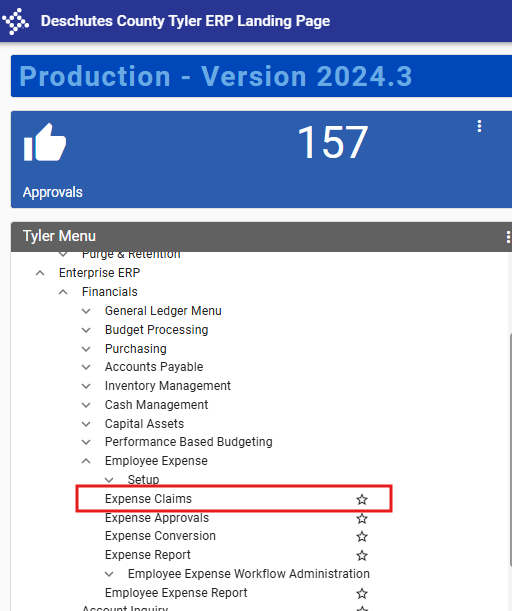
From the Main Tyler Menu select Enterprise ERP > Financials > Employee Expense > Expense Claims
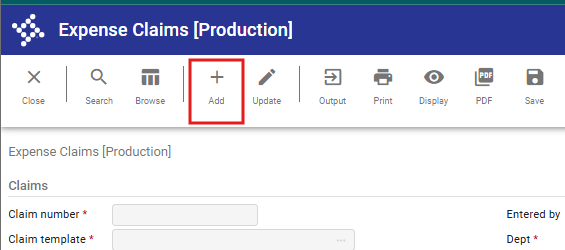
To start entering a reimbursement, select the Add option from the top ribbon.
It will open up the Expense Claims screen.
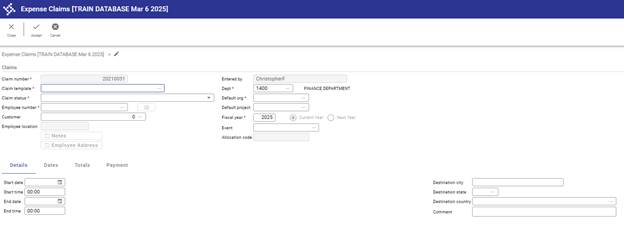
To complete the expense claims, complete all the steps:
- Claim number: This field will automatically populate. The claim numbers are in sequential number and can’t be modified.
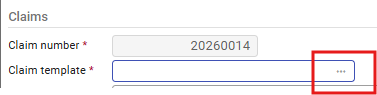
- Claim template: Select the type template to use by clicking the 3 dots.
 :
:
Select the template. Click Accept. Click Tab.
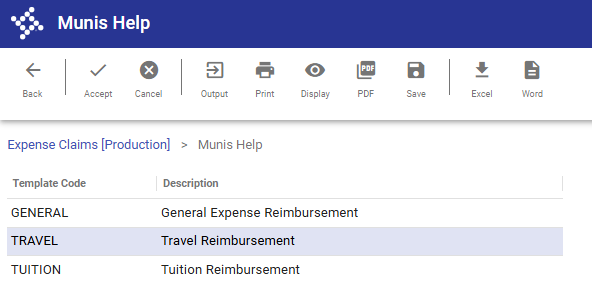
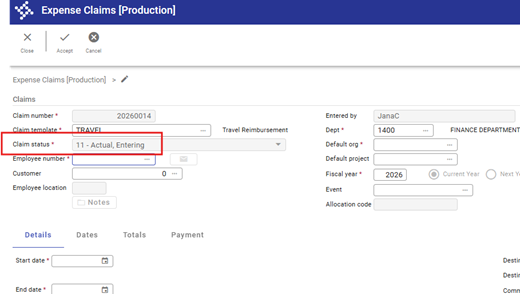
- Claim status: This field will automatically update to “11 – Actual, Entering”
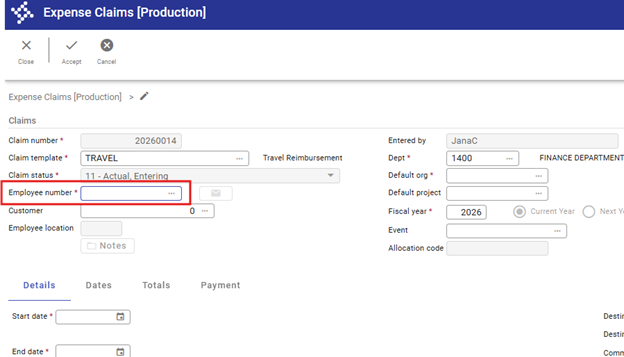
- Employee number: Enter the Employee Number or use the 3 dots on the right to search for the employee.
- Customer: We are not currently using this field. Click tab to skip this step.
- Dept: The department field will automatically populate to the department of the clerk entering the transaction. If the employee is in a different department, update by searching for the correct department.
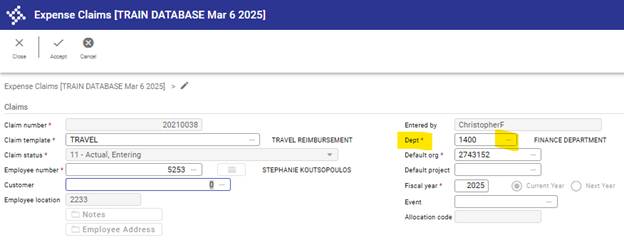
- Default Org: This field automatically populates based on the Org the employee is paid through via payroll. If the expense should be paid out of a different org, update by searching for the correct org
- Default Project: We are not currently using this field. Click tab to skip this step.
- Fiscal Year: Field will automatically populate with current fiscal year.
- Event: Field not being used. Skip.
- Click ‘Tab’ to get to the Details tab.
- Enter the Start Date
- Enter the End Date
- Enter the Destination City and State
- Enter purpose of trip in the Comment Field.
- Click Accept.

- Enter the Unit Expenses. For per diem meals, you will just enter the total amount.
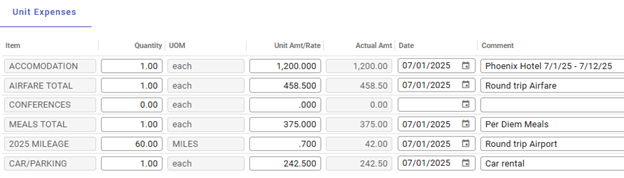
- If you need to add another line, click the ‘Add Another Line’ skittle and select the type.
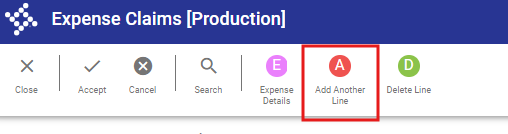
Once all unit expenses have been entered, select ‘Accept’.
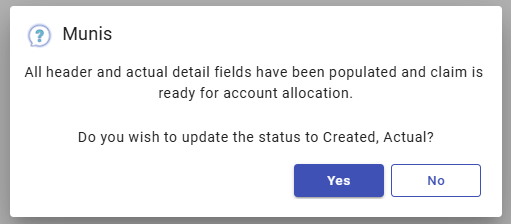
- You will be prompted with the below image. Choose ‘Yes’.
- Select ‘Allocate’ from the Top Ribbon

- Select Check Budgets.
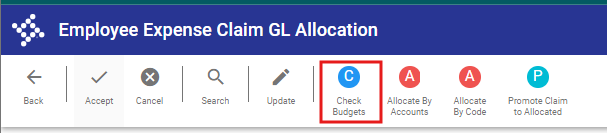
System will preview allocations. If correct, you can promote cl
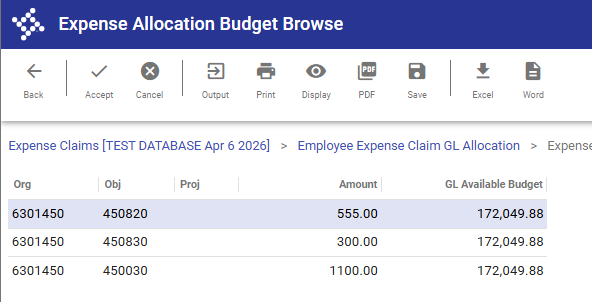
- If all transactions are coded appropriately, select the ‘Check Budgets’ skittle. Click Accept. Then the “Promote Claim to Allocated” skittle will appear in the top ribbon.
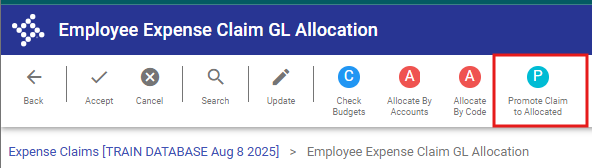
- Select ‘Promote Claim’ to Allocated skittle. No corrections to where expense is coded, Skip to step 23.
- If you need to make updates to allocations, Select Update.
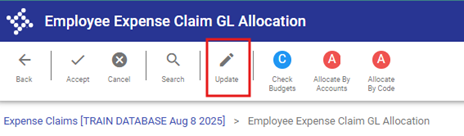
- For each transaction:
- Click ‘Update’
- Confirm the Project String (if necessary), Org, and Object are correct.
- Click ‘Accept’
If you need to split an expense between multiple orgs and/or objects, adjust either the % or amount to for additional lines to populate.

- Once transactions are coded appropriately, select the ‘Check Budgets’ skittle. Click Accept. Then the “Promote Claim to Allocated” skittle will appear in the top ribbon.
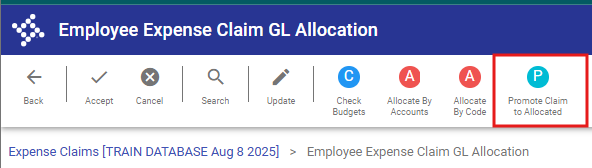
- Select ‘Promote Claim’ to Allocated skittle.
- Select ‘Release’ skittle. This will send the reimbursement to the approval workflow.
